See which of your Claude Code, Codex, and opencode agents is waiting for you, and answer it in the same terminal from your iPhone.
Short answer
To run a coding agent from your iPhone, the agent keeps running on a computer you own and your phone connects to that computer to show you its terminal. Claude Code's Remote Control and Codex Remote in the ChatGPT app each do this for their own agent, and an SSH app with tmux does it for any agent but can't tell you which one is waiting. Spaces runs Claude Code, Codex, and opencode on your Mac or a Linux server and shows every one of them, working, waiting for you, or done, in one iPhone app.
At a glance
Agents it covers
Where the agent runs
What has to stay up
Push notifications
Remote Control
Claude Code
Your computer
The computer, and the claude process
Yes
Codex Remote
Codex
Your Mac or Windows PC, or an SSH host it reaches
The host, awake and running the Codex app
Yes
SSH app + tmux
Any
Your computer
The computer, and tmux on it
Add brrr, ntfy, or similar
Spaces
Claude Code, Codex, opencode
Your Mac or a Linux server
That machine, awake, with its Spaces service running
No
What you need from a phone
On a phone, the job is mostly unblocking agents, not writing code. Most of what you do away from your desk comes down to four things:
See which agent is waiting for you, across every machine and every agent you run.
Read enough of its terminal to answer: the permission prompt, the question, the plan it wants approved.
Type the answer into the same session the agent is running in.
Start the next task when one finishes.
Reviewing a large diff or untangling a merge is still easier at a desk. The goal is to keep an agent from sitting idle for an hour because it asked a yes-or-no question while you were at lunch.
Your options today
Claude Code Remote Control
Remote Control connects the Claude app (iOS and Android) or claude.ai/code to a Claude Code session running on your machine. It is available on Pro, Max, Team, and Enterprise plans (on Team and Enterprise, an Owner turns it on first), and it can send push notifications when a long task finishes or Claude needs a decision. Anthropic's docs note that "your computer has to stay on and the claude process has to keep running." It covers Claude Code only.
Codex Remote in the ChatGPT app
Codex Remote lets the ChatGPT app on iOS or Android start, steer, and approve Codex tasks on a connected Mac or Windows PC, including work on an SSH host that computer reaches. You get notified when a task completes or needs your attention. The host has to stay awake, online, and running the app: "If that computer sleeps, loses network access, or closes the app, remote access stops until it's available again." It covers Codex only.
An SSH app, tmux, and Tailscale
The most-shared guides on this topic, such as Simon B. Støvring's and Quan Nguyen's, use the same stack: Tailscale to reach the computer, tmux to keep sessions alive, an SSH client like Prompt or Termius on the phone, and a push service like brrr or ntfy wired to agent hooks so you know when to look. It works with any agent and costs little, but you assemble and maintain it yourself, and the alert and the terminal are separate: a push tells you something needs you, then you find the right tmux window. Some phone terminals, such as Moshi, add agent status and push notifications on top of SSH.
opencode's web interface
opencode web serves opencode's own interface. Bind it to your network, set OPENCODE_SERVER_PASSWORD, and you can open it in a phone browser. It covers opencode only.
Cloud agents
Claude Code on the web and Codex Cloud run tasks on the vendor's machines, so they keep working while your laptop is closed. You can start Claude's cloud sessions from the Code tab in the Claude app. In exchange, the work runs in the vendor's environment rather than on your machine with your tools and credentials, and both are built around GitHub repositories.
How Spaces does it
The Spaces service runs on each machine you use: your Mac, and any Linux server or second Mac you pair. It hosts every terminal session on that machine, including the ones running coding agents. The Mac app and the iPhone app are windows onto those sessions. Closing the Mac app, locking your phone, or losing signal disconnects a viewer; the agent keeps running in the Spaces service and is there when you come back.
The iPhone app connects straight to each paired machine, over your local network or Tailscale. There is no Mac in the path: when you open an agent on a Linux server, the phone talks to the server.
Spaces gets each agent's state from small hooks it installs into Claude Code, Codex, and opencode, from Settings → Coding Agents on the Mac, for the Mac or any paired machine. The hooks report when an agent is working, blocked (waiting on a permission prompt or your answer), or done. See Agent status.
The Mac app lists each machine's workspaces and agents. The iPhone app connects to the same machines directly.
Walkthrough: three agents, two machines, one phone
This example has Claude Code running on a Mac, and Codex and opencode on a Linux server paired with it. Setting up the server is covered in Run coding agents on a remote server.
1. Pair the phone with each machine
On the Mac, open Settings → Devices, find a machine's row, and press Pair iPhone to show its QR code. Scan it with the Spaces app. Do it for the Mac and again for the server, so the phone can reach each one on its own. Without a Mac nearby, running spaces device pair on the server prints a spaces://pair link to open on the phone.
To reach your machines from outside your home network, put the Mac, the server, and the phone on one Tailscale tailnet. The pairing code lists each machine's local address and its Tailscale address, and the phone tries them in that order. See Pair your iPhone and Tailscale.
2. See every agent in one list
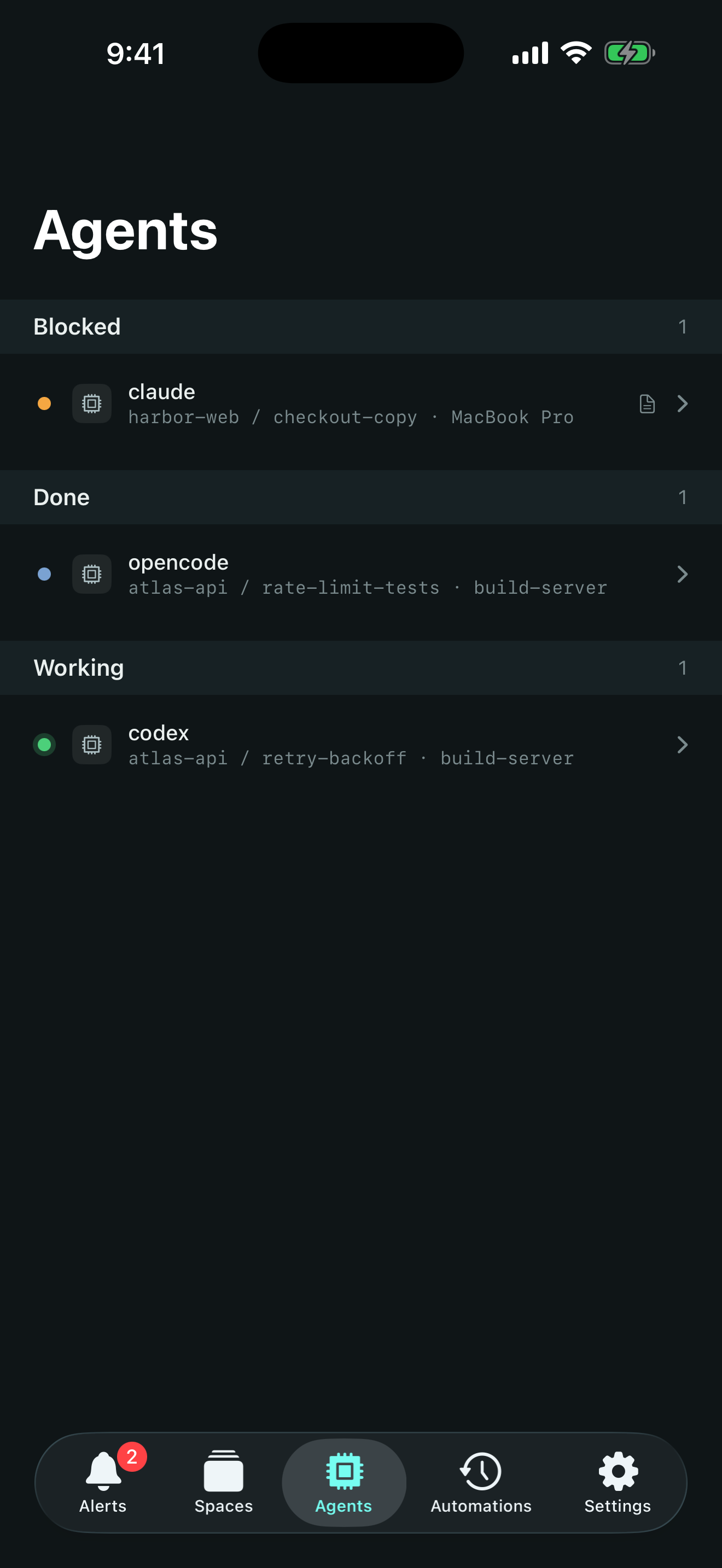
The Agents tab lists the running agents on every paired machine, grouped Blocked, Done, then Working. Here, Claude Code on the Mac is blocked on a permission prompt, opencode on the server is done, and Codex on the server is working. With more than one machine paired, each row names its machine.
The Agents tab groups the agents on every paired machine by state.
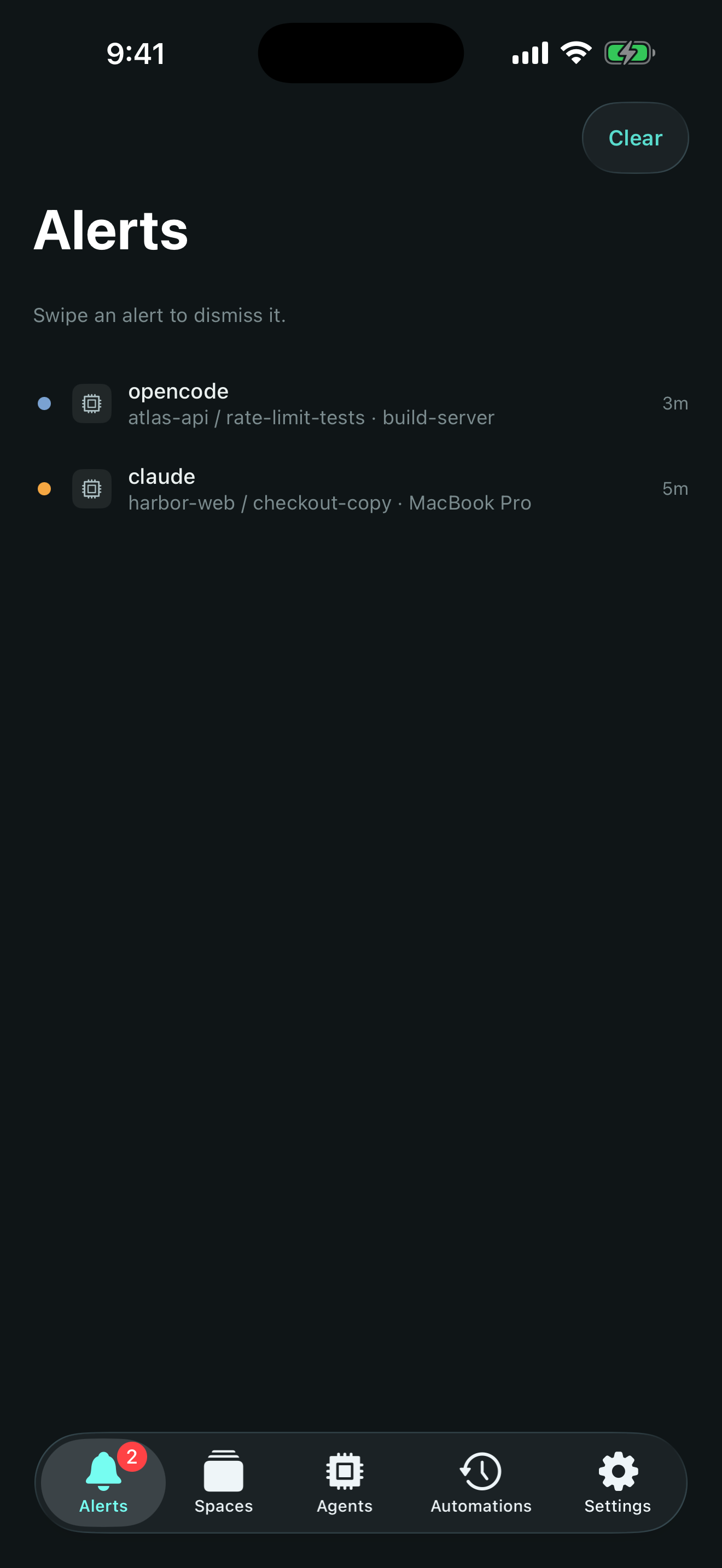
The Alerts tab lists only what needs you, across every paired machine, with a badge count. Opening a finished agent's terminal for about two seconds clears its alert, and a blocked agent stays listed until you answer it or swipe it away. See Visiting clears finished work.
The Alerts tab: what is waiting on you, from every paired machine.
3. Open the one that's waiting
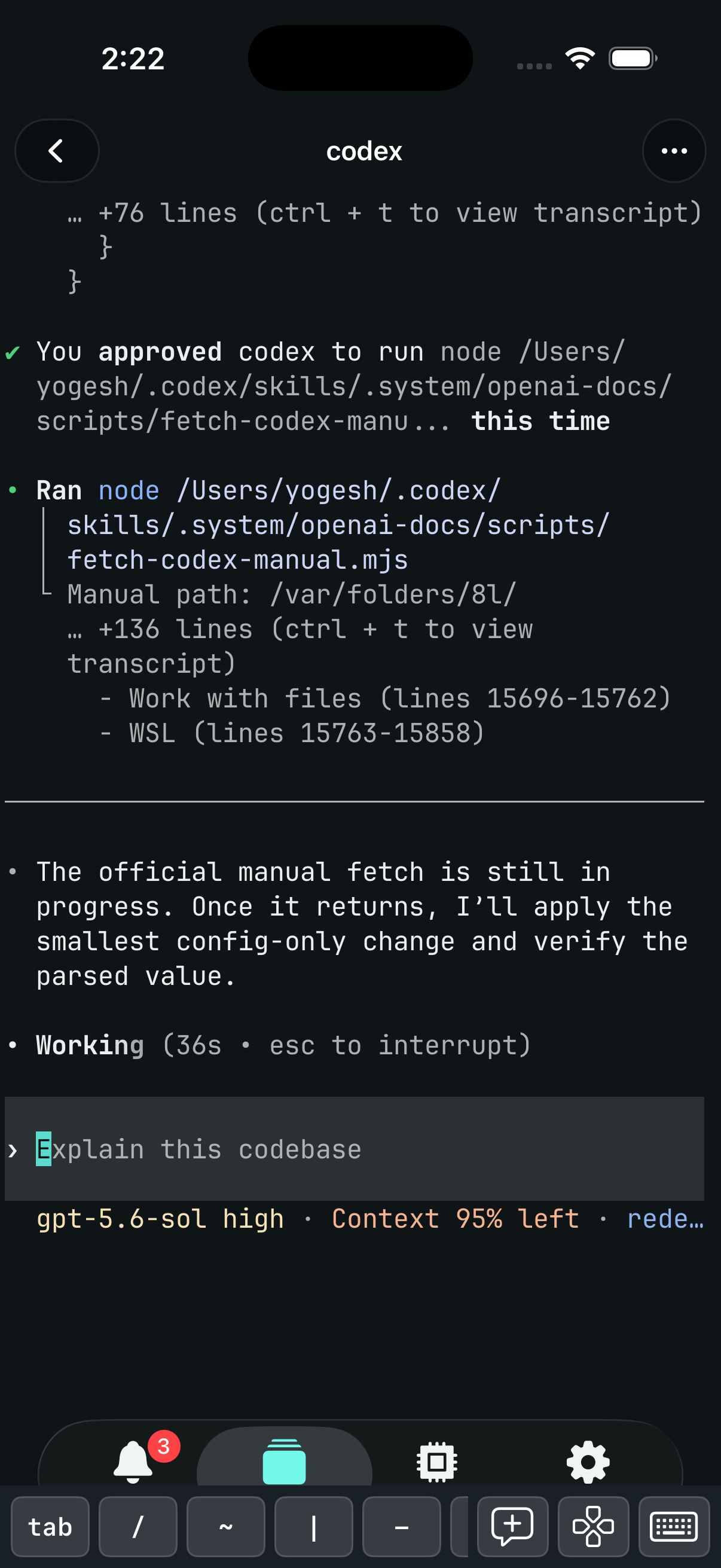
Tap the Claude Code row and its terminal opens: the same session that is running on the Mac. Opening it on the phone makes the phone the session's owner, so what you type goes in. The Mac's pane for that session shows that the iPhone has it and offers Take Over for when you're back at your desk.
The keyboard comes up on its own, with a row of terminal keys above it. A modifier key applies to the next character, arrow, Return, or Backspace you type, so Shift then Return sends Shift+Enter without a hardware keyboard. For a longer answer, the composer lets you write a full message, attach an image such as a screenshot of the bug, and send it in one go.
Answer an agent in its own terminal, from wherever you are.
4. Read the brief instead of scrolling
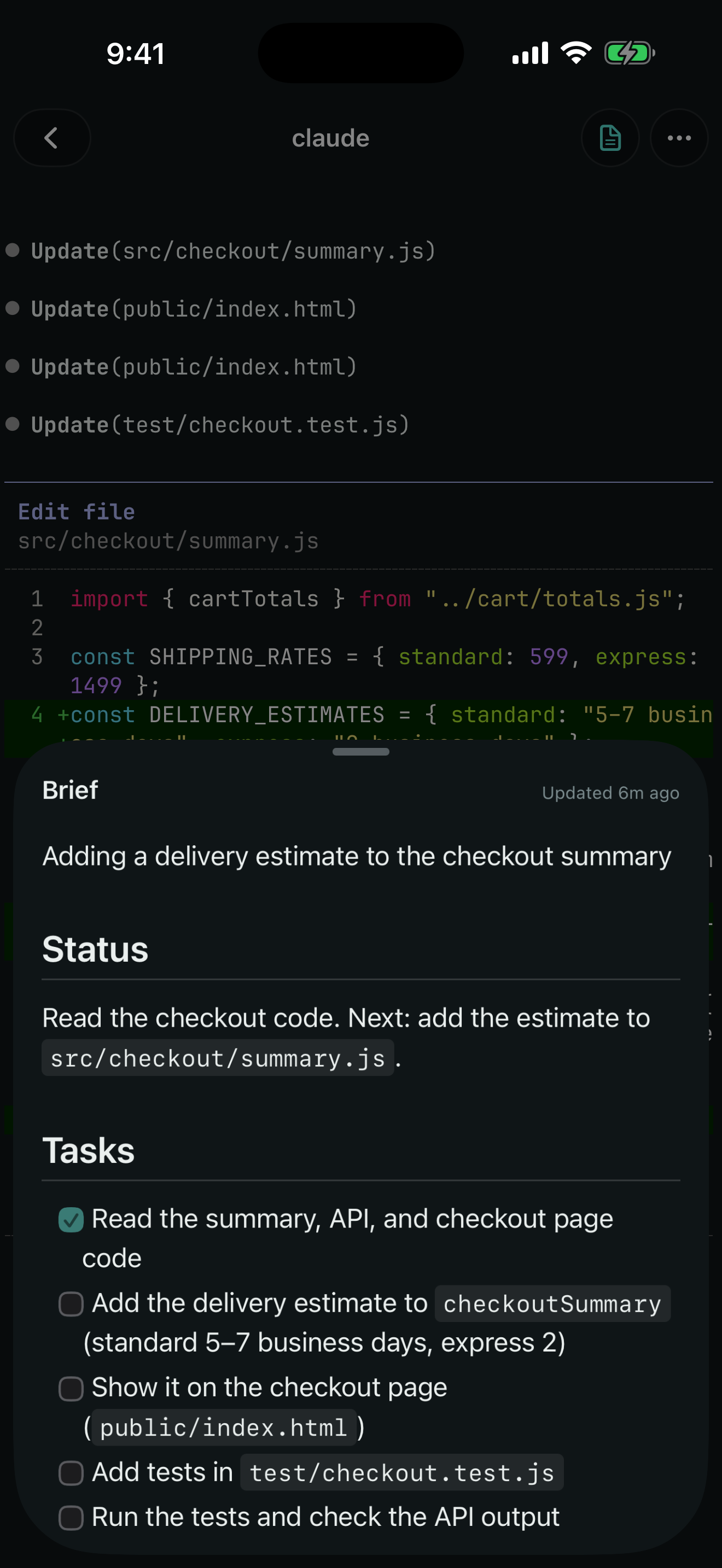
An agent can keep a brief: a short status page it writes about its own work, with what it is doing, questions for you, and its task list. When an agent has one, the iPhone opens it in a sheet as you enter its terminal. On a small screen that is usually faster than scrolling back through a long transcript. See Agent briefs.
The brief opens as you enter the agent's terminal.
5. Start the next task
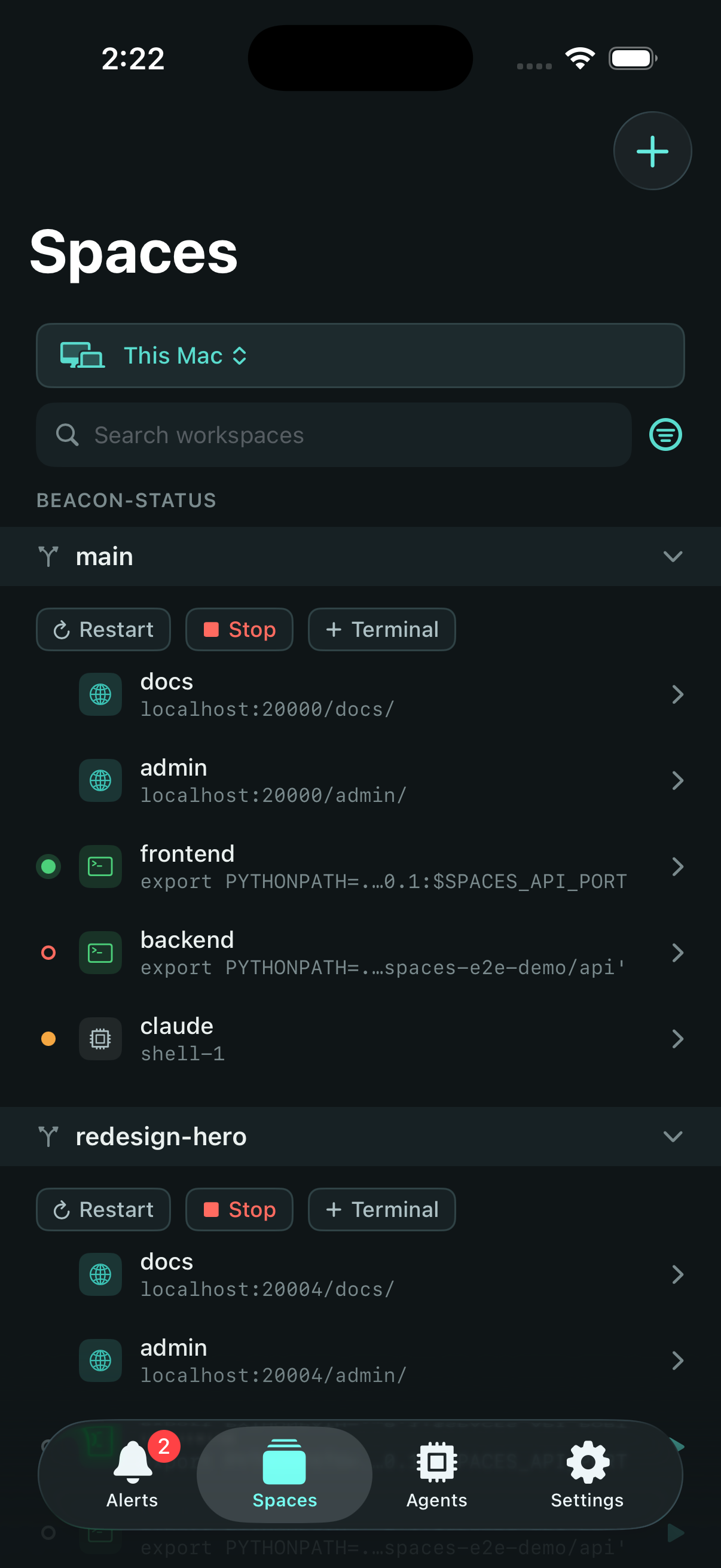
On the Spaces tab, a workspace's menu offers New Terminal. Type codex, claude, or opencode, and the agent starts in that workspace on that machine, showing up in the Agents tab like any other. You can also create a workspace from the phone (it takes a branch name and branches from the project's default branch), and run an automation on demand by opening it and using Run Now from its Next run sheet (automations are created on the Mac).
The Spaces tab shows each workspace's processes and agents on the selected machine.
What keeps running when you walk away
On a Linux server, agents keep running whatever your laptop and phone are doing. The installer runs the Spaces service as a systemd user service with lingering enabled, so it doesn't need anyone logged in. Restarting the server ends its sessions; when it comes back, Spaces offers to restore every agent that was cut short, resuming each conversation where the agent supports it. See What survives a restart.
On your Mac, agents run while the Mac is awake. Quitting the Spaces app keeps them running ("Quit and Keep Running" is the default). A Mac that goes to sleep pauses everything on it, and your phone can't reach it until it wakes. If you want agents to keep going while your laptop is in a bag, run them on a Linux server.
On the phone, lists update live while the app is open. In the background the app stops updating, and it catches up as soon as you return. A machine that is unreachable keeps its rows listed, dimmed, with their last-known state.
Limits to know before you start
No push notifications. Spaces does not notify your phone when an agent finishes or gets stuck. The Alerts tab lists blocked and finished agents, exited processes and terminals, terminal bells, failed or timed-out automation runs, and rows you marked Come Back Later across every paired machine, with a badge count, but you see it when you open the app. If push matters most to you, Remote Control, Codex Remote, and the SSH-plus-push setups all have it.
A question in plain text reads as done. An agent that asks you something in its output, rather than through a permission prompt, shows as done instead of blocked, because no hook fires for a plain-text question. Check Done as well as Blocked.
A yearly subscription. The app is on the App Store for iPhone and iPad with iOS 17 or later, with a one-week free trial.
Apple clients only. The clients are the Mac app and the iPhone and iPad app. There is no Android, Windows, or web client. Agents run on Macs and Linux servers (Ubuntu, Debian, Fedora, AlmaLinux).
Some things stay on the Mac. Installing the status hooks and creating or editing automations happen in the Mac app.
When something else is the better choice
You use only Claude Code and want push notifications with nothing new to install: use Remote Control. It is part of Claude's Pro, Max, Team, and Enterprise plans, and the Claude app runs on iOS and Android.
You use only Codex, or your host is a Windows PC: use Codex Remote in the ChatGPT app.
Your phone runs Android: use one of the vendor apps or an SSH app.
You want work to continue with every computer of yours switched off, and your code is on GitHub: use Claude Code on the web or Codex Cloud.
You run one agent on one machine and tmux plus push already works: keep it.
Spaces fits when you run more than one kind of agent, or agents on more than one machine, and want one place on your phone that shows which one needs you.
Remote Control plans (Pro, Max, Team, Enterprise; Owner toggle on Team and Enterprise), iOS and Android Claude app plus claude.ai/code, push notifications when a task finishes or needs a decision, and the quote "your computer has to stay on and the claude process has to keep running": https://code.claude.com/docs/en/remote-control (fetched 2026-10-01)
Codex Remote on a connected Mac or Windows PC, pairing by scanning a code: https://learn.chatgpt.com/docs/remote (fetched 2026-10-01; developers.openai.com/codex/remote redirects here)
Codex Remote on iOS or Android, SSH hosts reached through the desktop host, notifications when a task completes or needs attention, and the quote "If that computer sleeps, loses network access, or closes the app, remote access stops until it's available again": https://learn.chatgpt.com/docs/remote-connections (fetched 2026-10-01)
Claude Code cloud sessions run on Anthropic-managed infrastructure, keep running after you close your laptop, start from the Code tab in the Claude app, and require GitHub for cloning and pull requests: https://code.claude.com/docs/en/claude-code-on-the-web (fetched 2026-10-01)
Codex Cloud tasks run in OpenAI-managed containers, keep working while your computer is asleep, and set up from GitHub repositories: https://learn.chatgpt.com/docs/cloud (fetched 2026-10-01)
Moshi's agent status (working / needs you / done), push notifications, and approvals over SSH, per its own comparison page: https://getmoshi.app/compare (fetched 2026-10-01)
opencode web, binding to the network with --hostname, and OPENCODE_SERVER_PASSWORD: https://opencode.ai/docs/web/ (fetched 2026-10-01)