Availability
The Spaces iOS app is on the App Store for iPhone and iPad, on iOS 17 or later. It asks you to start a yearly subscription before it opens, with a one-week free trial.
A full client
The iOS app connects directly to any paired device, your Mac or a Linux machine, and works on its own: there is no Mac in the path. It keeps showing an offline device's rows, so you can see what was there even while it is unreachable.
Pairing
See Pair your iPhone.
Tabs
- • Alerts: blocked and finished agents, exited processes, terminals that exited or failed, bells, failed or timed-out automation runs, and rows you marked Come Back Later, across every paired device at once. Opening a terminal for about 2 seconds clears its finished work (see Alerts).
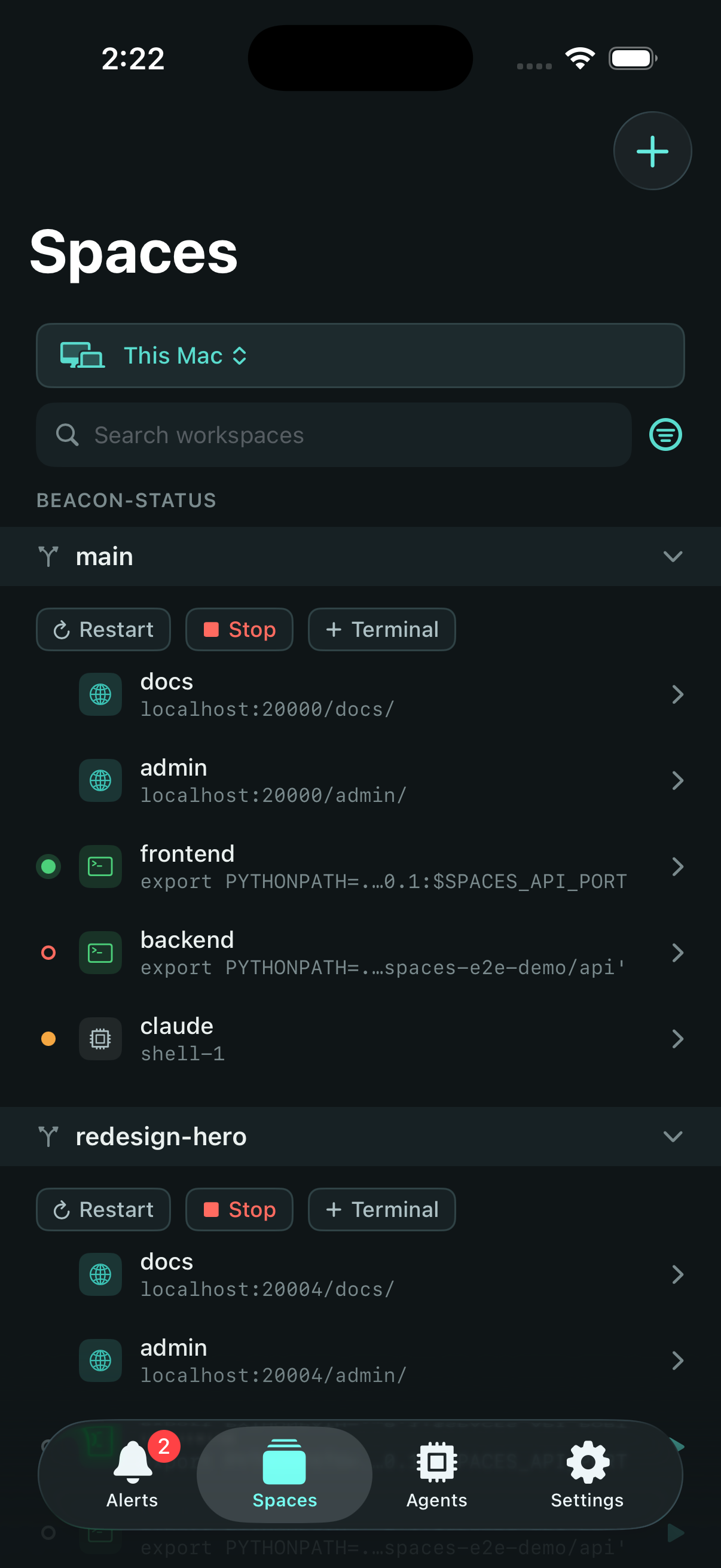
- • Spaces: your projects and workspaces, with their targets, for the device you have selected.
- • Agents: running coding agents across every paired device, grouped Blocked, Done, and Working; an agent that isn't running stays reachable from its workspace on the Spaces tab.
- • Automations: your automations and their runs.
- • Settings: paired devices, subscription, appearance, and Demo Mode.
Terminals
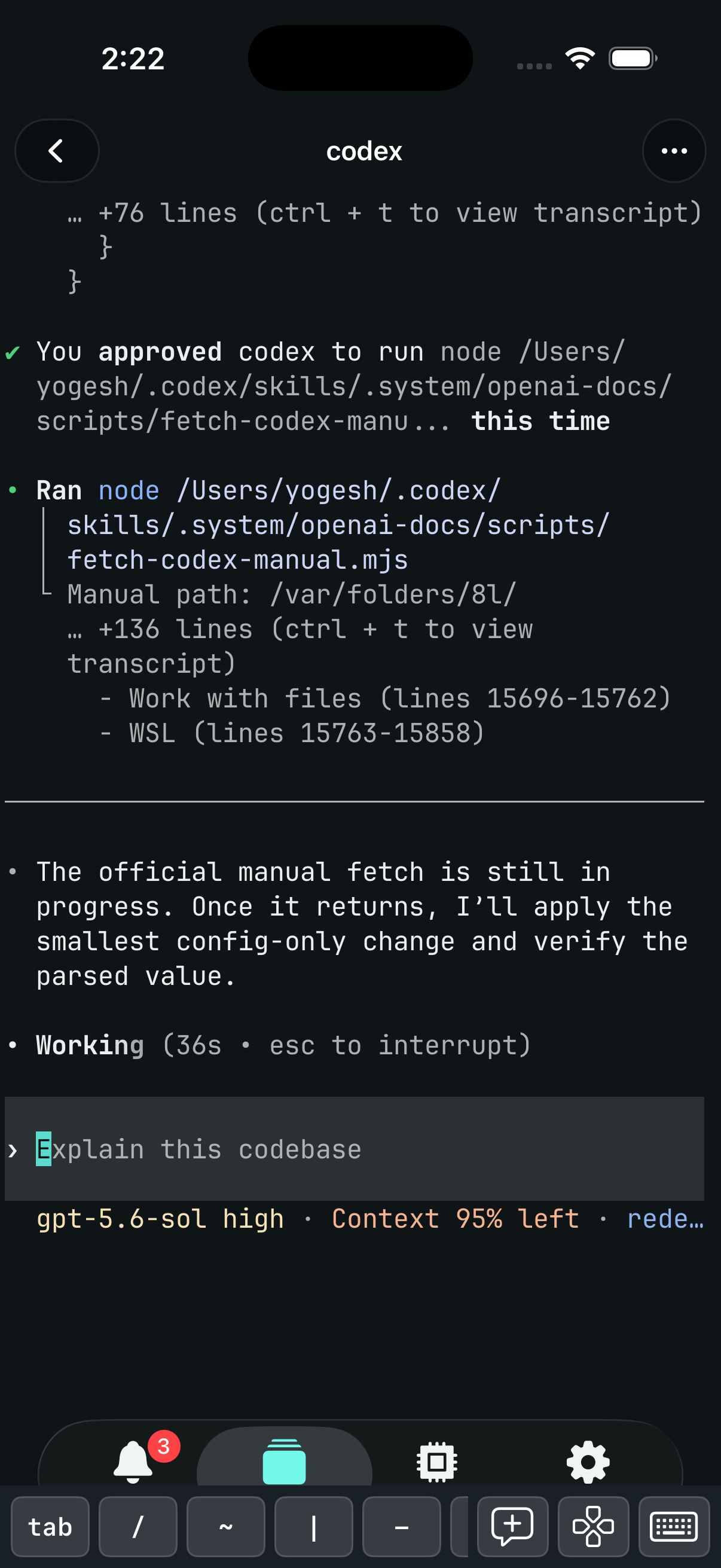
- • Open a session to watch its output and type into it, the same shell every other client sees.
- • Compose a longer message and attach an image, then send it in one go.
- • A tap acts as a click when the program inside the session tracks the mouse.
- • Long-press to select a word, keep your finger down to extend the selection, and drag the handles to adjust either end. A menu offers Copy and Select All; the selection is yours alone and ends when you type or tap. Drag past the top or bottom edge to keep selecting through scrollback.
- • In a program that tracks the mouse, a long-press drag goes to the program. A Select key appears in the key row while it does; tap it and the next long press selects text instead.
- • The keyboard comes up on its own when you open a session you own, and comes back once you close the composer or another sheet.
- • A connection banner with Retry shows when the app cannot reach the session's device.
Workspaces and processes
- • Create, hide, and delete workspaces.
- • Start, stop, and restart a workspace's configured processes.
Agents
View and open a running coding agent from the Agents tab; one that isn't running is still reachable from its workspace on the Spaces tab. From the app you can stop an agent; starting one happens from a terminal, or by running an agent automation from the Automations tab, the same as on the Mac.
Browser sessions
See Browser sessions on iPhone.
Demo Mode
- • Turn on “Demo Mode” from Settings, or tap “Try Demo Mode” on the Spaces tab, to tour the app with sample data, workspaces, coding agents, alerts, and terminals, without pairing a device.
- • Demo terminals are read-only and have no scrollback: you can watch a session's recorded screen, and typing starts once you pair your own device. A banner keeps the sample-data context clear, and one tap turns it off.